Training Deep Models for Super Resolution
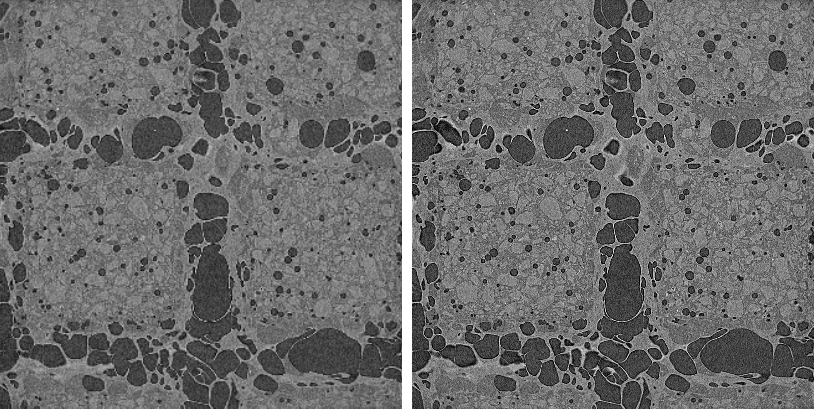
The term 'super resolution' refers to the process of improving the quality of images by boosting its apparent resolution. In most cases, a trained super resolution model can transform images from low-resolution (LR) to high-resolution (HR) while maintaining clean edges and preserving important details.
Original image (left) and with super resolution applied (right)
 Prerequisites
The following items are required for training a deep model for super resolution:
- Training data, which includes low-resolution input images and high-resolution output images.
Important Output images must be an exact multiple of input images, such as 2x, 4x, 10x, and so on, in X-Y.
- A model that supports super resolution.
A selection of untrained models suitable for regression are supplied with the Deep Learning Tool (see Architectures and Editable Parameters for Regression Models).
The following items are optional for training a deep model for super resolution:
- An ROI mask(s), for defining the working space for the model (see Applying Masks).
- A visual feedback region for monitoring the progress of training and a checkpoint cache so that you can save a copy of the model at a selected checkpoint (see Enabling Visual Feedback and Checkpoint Caches).
Enabling Visual Feedback and Checkpoint Caches
To help evaluate the progress of training deep models, you can designate a 2D rectangular region for visual feedback. With the Visual Feedback option selected, the model’s inference will be displayed in the Training dialog in real time as each epoch is completed (see Enabling Visual Feedback).
In addition, you can create a checkpoint cache so that you can save a copy of the model at a selected checkpoint (see Saving and Loading Model Checkpoints).
Generating Deep Models for Super Resolution
Dragonfly's Deep Learning Tool provides a number of architectures — including EDSR, U-Net, U-Net 3D, UNet++, and WDSR — that are suitable for super resolution.
- Choose Artificial Intelligence > Deep Learning Tool on the menu bar.
The Deep Learning Tool dialog appears.
- On the Model Overview panel, click the New button on the top-right.
The Model Generator dialog appears (see Model Generator and Deep Learning Architectures for additional information about the dialog).
- Make sure that only Super-resolution is checked for the Show architectures for options.
This will filter the available architectures to those recommended for super resolution.
- Choose the required architecture in the Architecture drop-down menu.
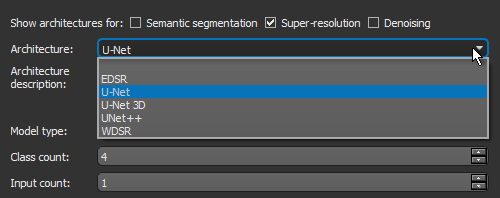
Note A description of each architecture is available in the Architecture description box, along with a link for more detailed information.
- Choose Regression in the Model type drop-down menu.
- Enter the required number of inputs in the Input count box. For example, when you are working with data from simultaneous image acquisition systems you might want to select each modality as an input.
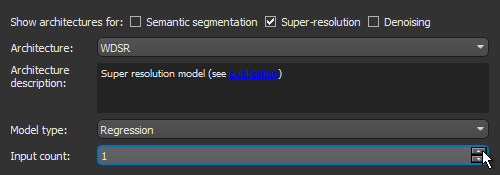
Note In most cases, super resolution strategies require an Input count of 1.
- Select the required input dimension in the Input dimension box.

- Enter a name and description for the new model, as required.
- Edit the default parameters of the selected architecture, as required.
Note Make sure that you select the correct scale for EDSR and WDSR models, as shown below, which is the ratio of the input size to the output size. Output images must be an exact multiple of input images, such as 2x, 4x, 10x, and so on.
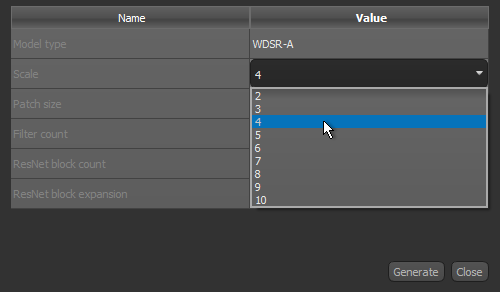
Note If you are using a U-Net model for super resolution, you will need to edit the model architecture and add layer(s) for scaling (see Model Editing Panel).
Note Refer to Architectures and Editable Parameters for Regression Models for information about the settings available in the Model Generator dialog.
- Click Generate.
After processing is complete, a confirmation message appears.
- Close the Model Generator dialog.
- Select your new model in the Model list.
Information about the loaded model appears in the dialog (see Details), while a graph view of the data flow is available on the Model Editing panel (see Model Editing Panel).
- Continue to the topic Training Models for Super Resolution to learn how to train your new model for denoising.
Training Models for Super Resolution
You can start training a model for super resolution after you have prepared your training input(s) and output(s), as well as any required masks (see Prerequisites).
- Open the Deep Learning Tool, if it is not already onscreen.
To open the Deep Learning Tool, choose Artificial Intelligence > Deep Learning Tool on the menu bar.
- Do one of the following, as required:
- Generate a new model for super resolution (see Generating Deep Models for Super Resolution).
- Select a model from the Model list that contains the required architecture, number of inputs, and input dimension.
- Import a model from Keras (see Keras models that your import into Dragonfly's Deep Learning Tool must meet the following requirements:).
- Select the required model from the Model list.
- Click the Go to Editing button to edit the architecture of the selected model, if required (see Model Editing Panel).
Note In most cases, you should be able to train a super resolution model supplied with the Deep Learning Tool as is, without making changes to its architecture.
- Click the Go to Training button at the bottom of the dialog.
The Model Training panel appears (see Model Training Panel).
- Do the following on the Inputs tab for each set of training data that you want to train the model with:
- Choose your input dataset in the Input drop-down menu.
Note If your model requires multiple inputs, select the additional input(s), as shown below.

Note Click the Edit Calibration
 button to open the Normalization dialog, in which you can normalize calibrated and uncalibrated datasets prior to training (see Normalizing Data Ranges Prior to Training or Inference).
 - Choose your output dataset in the Output drop-down menu.

- Choose a mask in the Mask drop-down menu, optional (see Applying Masks).
Note If you are training with multiple training sets, click the Add New
 button and then choose the required input(s), output, and mask for the additional item(s).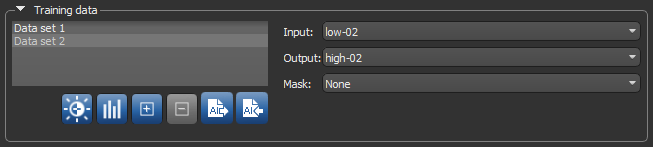
- Choose your input dataset in the Input drop-down menu.
- Do the following, as required.
- Adjust the data augmentation settings, if required (see Data Augmentation Settings).
In most cases, you can deselect Generate additional training data by augmentation.
- Adjust the validation settings, if required (see Validation Settings).
- Adjust the data augmentation settings, if required (see Data Augmentation Settings).
- Click the Training Parameters tab and then choose the required settings.
In most cases, you should increase the Patch size as much as possible. In addition, the 'MeanSquareError' loss function usually provides good results.
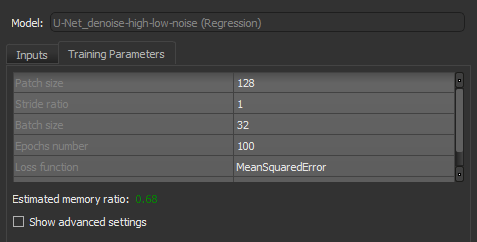
See Basic Settings for information about choosing the patch size, stride ratio, batch size, epochs number, loss function, and optimization algorithm.
Note You should monitor the estimated memory ratio when you choose the training parameter settings. The ratio should not exceed 1.00 (see Estimated Memory Ratio).
- If required, check the Show advanced settings option and then choose the advanced training parameters (see Advanced Settings).
You should note that this step is optional and that these settings can be adjusted after you have evaluated the initial training results.
- Click the Train button.
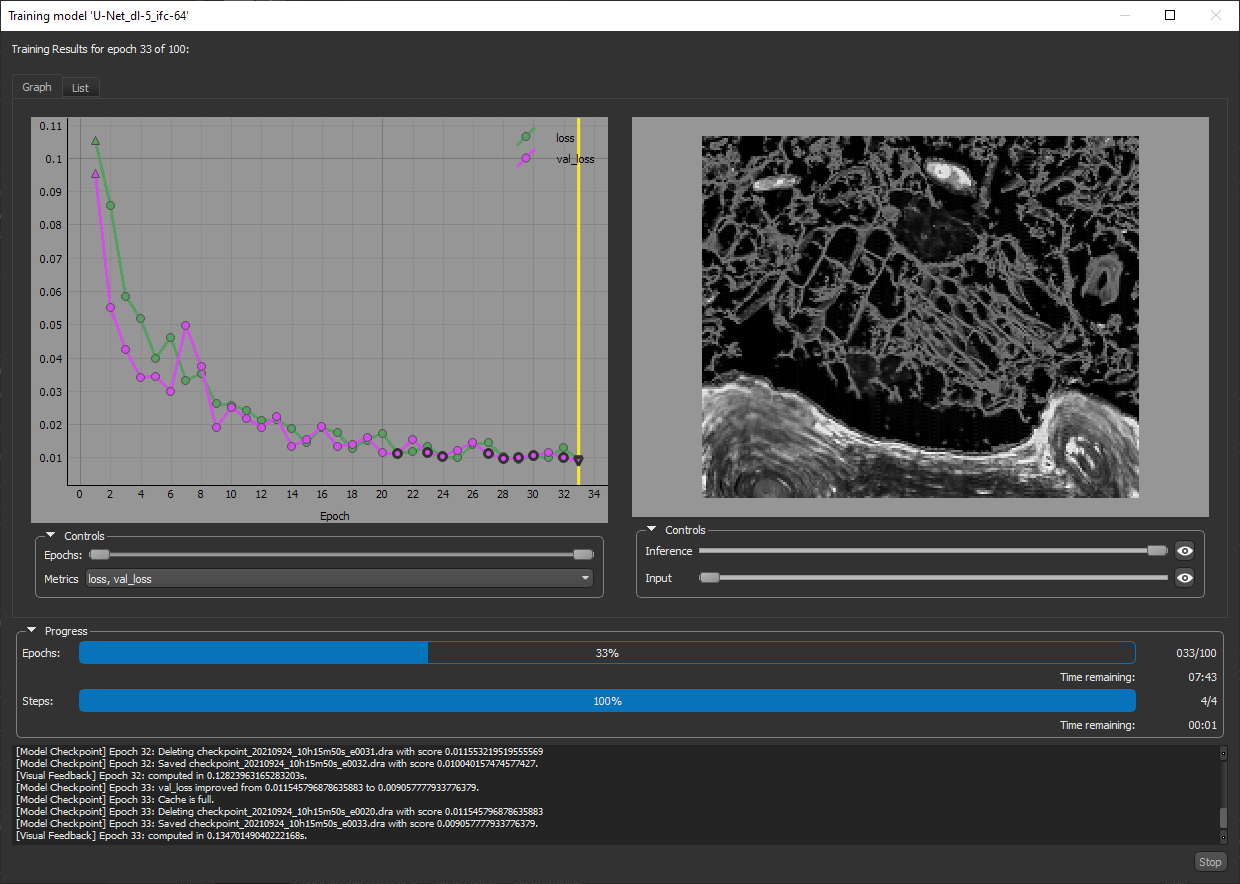
You can monitor the progress of training in the Training dialog, which is shown below.
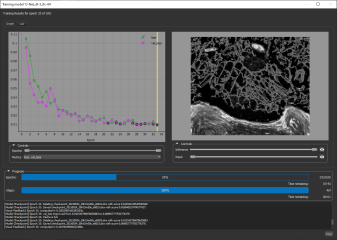
During training, the quantities 'loss' and 'val_loss' should decrease. You should continue to train until 'val_loss' stops decreasing. You can also select any of the other available metrics to monitor training progress.
Note You can also click the List tab and then review the precise values for each epoch.
- Wait for training the completed. You can also stop training at anytime, if required.
- Evaluate the results for the training session, recommended (see Evaluating Training Results).
- Preview the results of applying the trained model to the input dataset or to the source high-noise dataset to evaluate the model, recommended (see Previewing Model Inference).
Note The measure of good denoising is how well edges and details are preserved while resolution is increased.
- If the results are not satisfactory, you should consider doing one or more of the following and then retraining the model:
- Add additional training data.
- Adjust the data augmentation settings (see Data Augmentation Settings).
- Adjust the training parameter settings (see Basic Settings and Advanced Settings).
Note If your results continue to be unsatisfactory, you might consider choosing another architecture.
- Process the original dataset or similar datasets, as required (see Applying Deep Models).